Analyze your stash
Upload a screenshot of your Stash window and get, for every item, its value and the best action: sell to an NPC, sell on the market, or keep it because it is still good for an imbuement, a quest, a mount, an outfit addon or a weekly task.
Drag your stash screenshots here, or pick the files.
Up to 12 screenshots per analysis. They may overlap, duplicates are dropped automatically.
Pick your character world to run the analysis.
How to take the screenshot in Tibia
- Bind the screenshot key. In the client, open Options > Controls > General Hotkeys, find Misc: Take Screenshot, pick a free key and click Apply.It ships with no default key, and the binding is per hotkey preset. If you switch presets per character, bind it in the preset you will use.
- Turn off the game-window-only capture. In Options > Screenshots, untick Only Capture Game Window. Ticked, Tibia saves the map alone: the Stash window is left out of the screenshot, and the analysis is refused for not finding it.
- Open the Stash and sort by Name (A-Z) in the window selector. It is what improves recognition the most.
- Press the key. Tibia saves a PNG at original size, with no on-screen notice.
- Scroll the stash and repeat until the end of the list. They may overlap: duplicates are dropped automatically.
- Open the screenshot folder. Paste it into Win+R or the Explorer address bar:
%LOCALAPPDATA%\Tibia\packages\Tibia\screenshotsSort by date. Yours are the most recent..._Character_Hotkey.pngfiles. - Drag the files here, the originals, straight from the folder.Going through WhatsApp or Discord shrinks the image and the analysis is refused. If you have to send it that way, choose to send it as a file/document.
What the result looks like
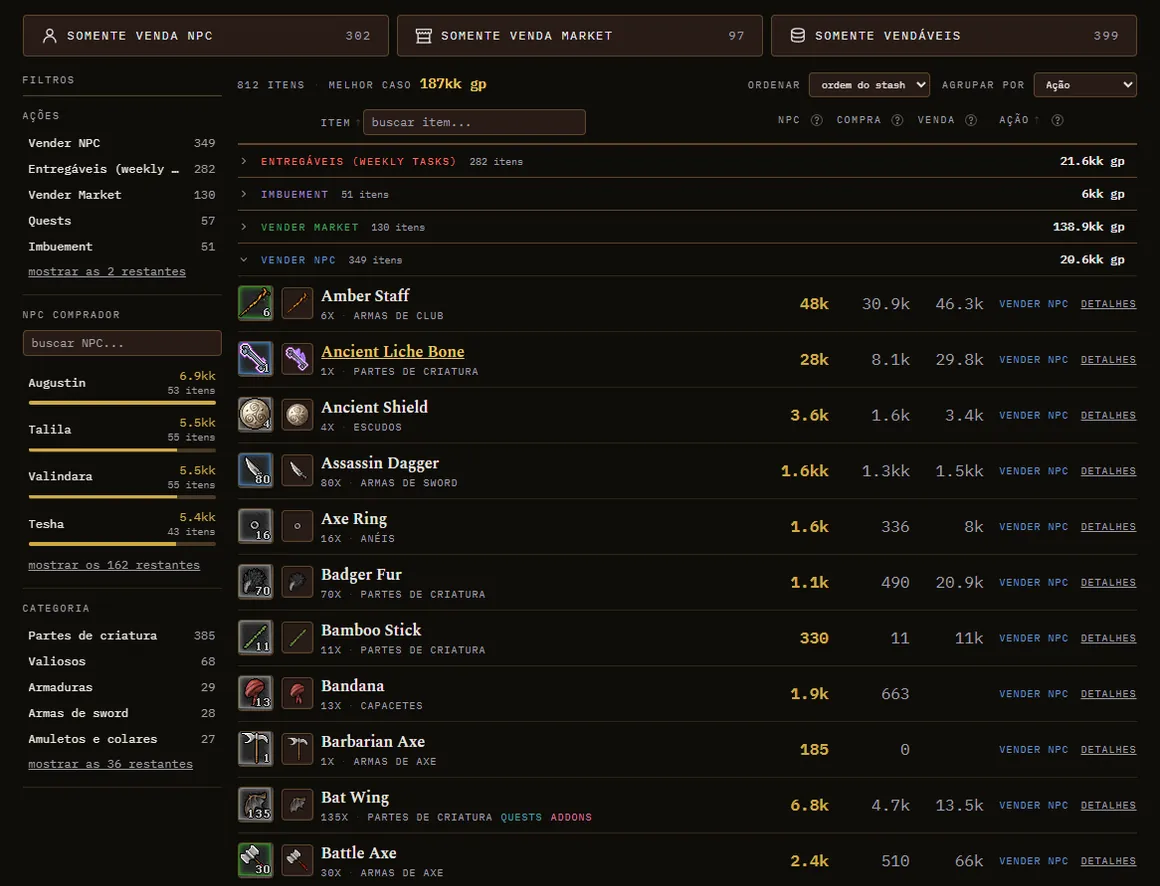
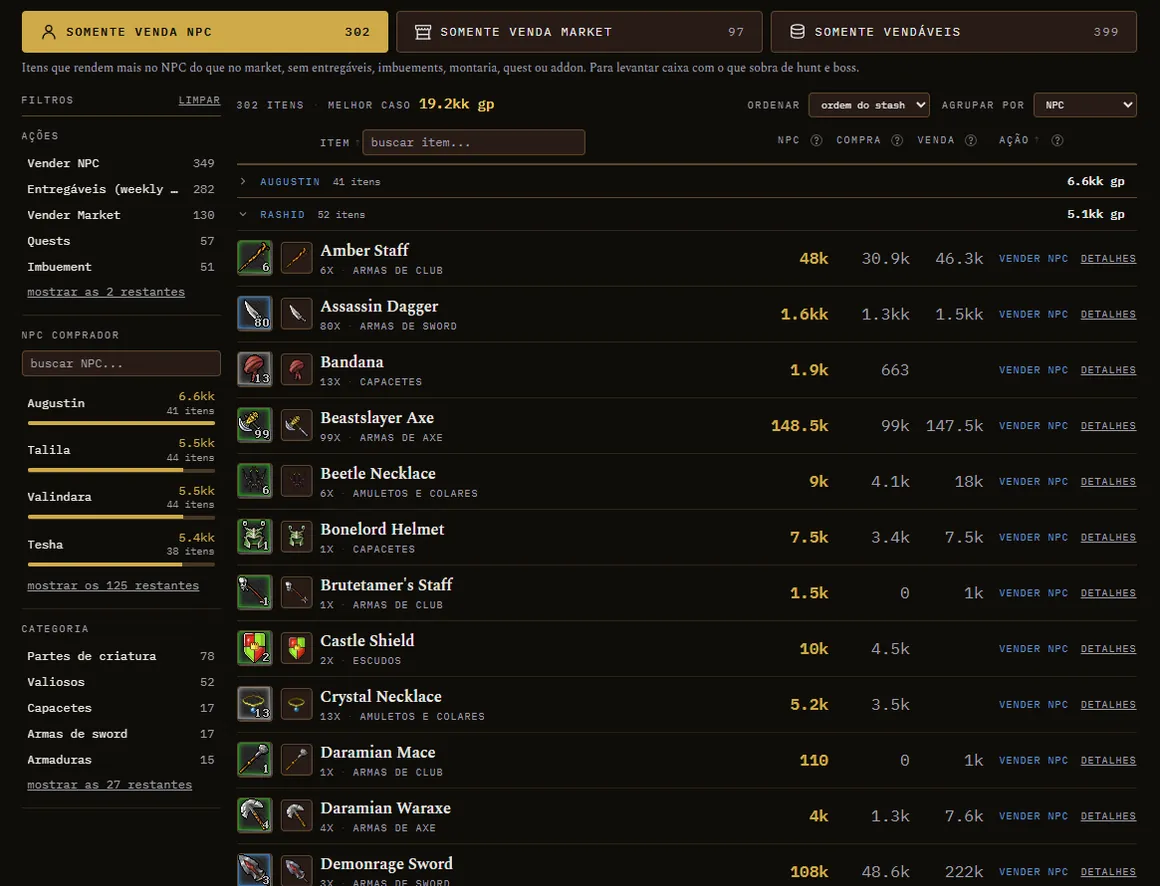
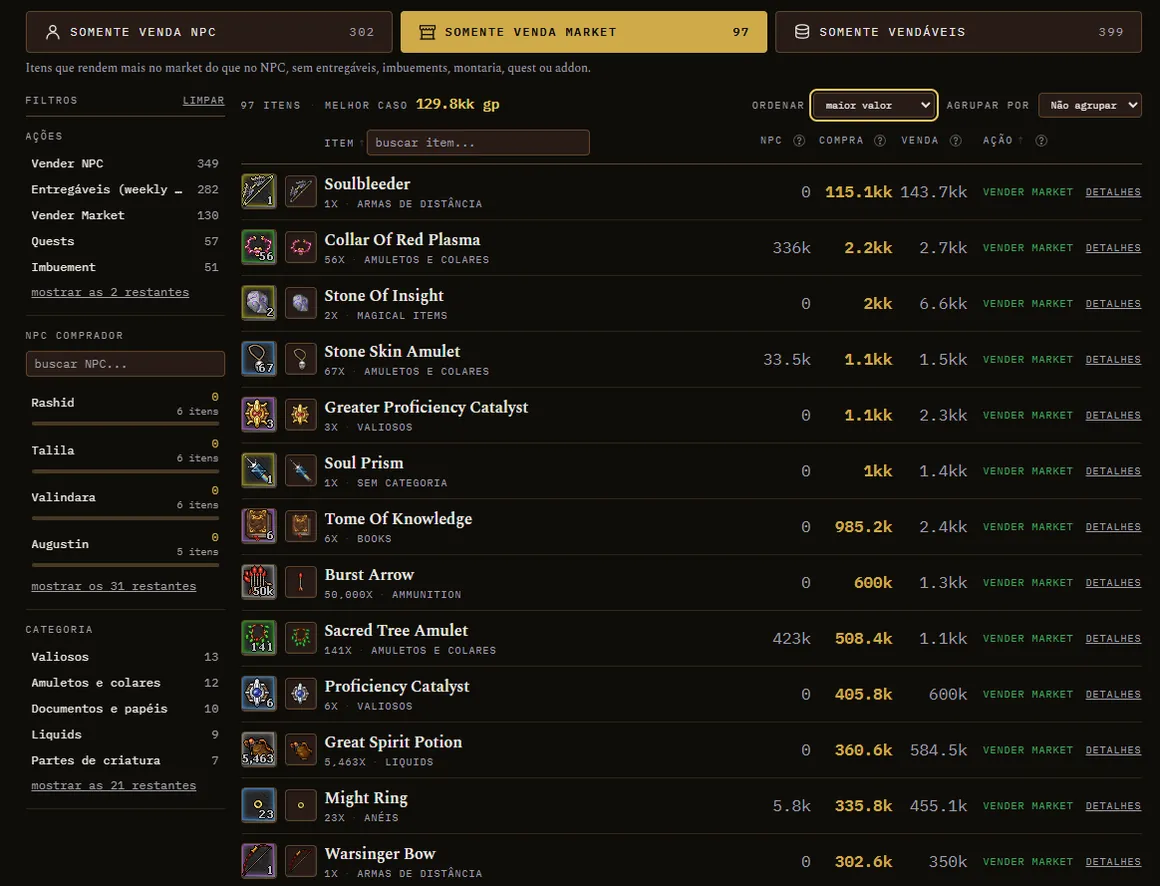
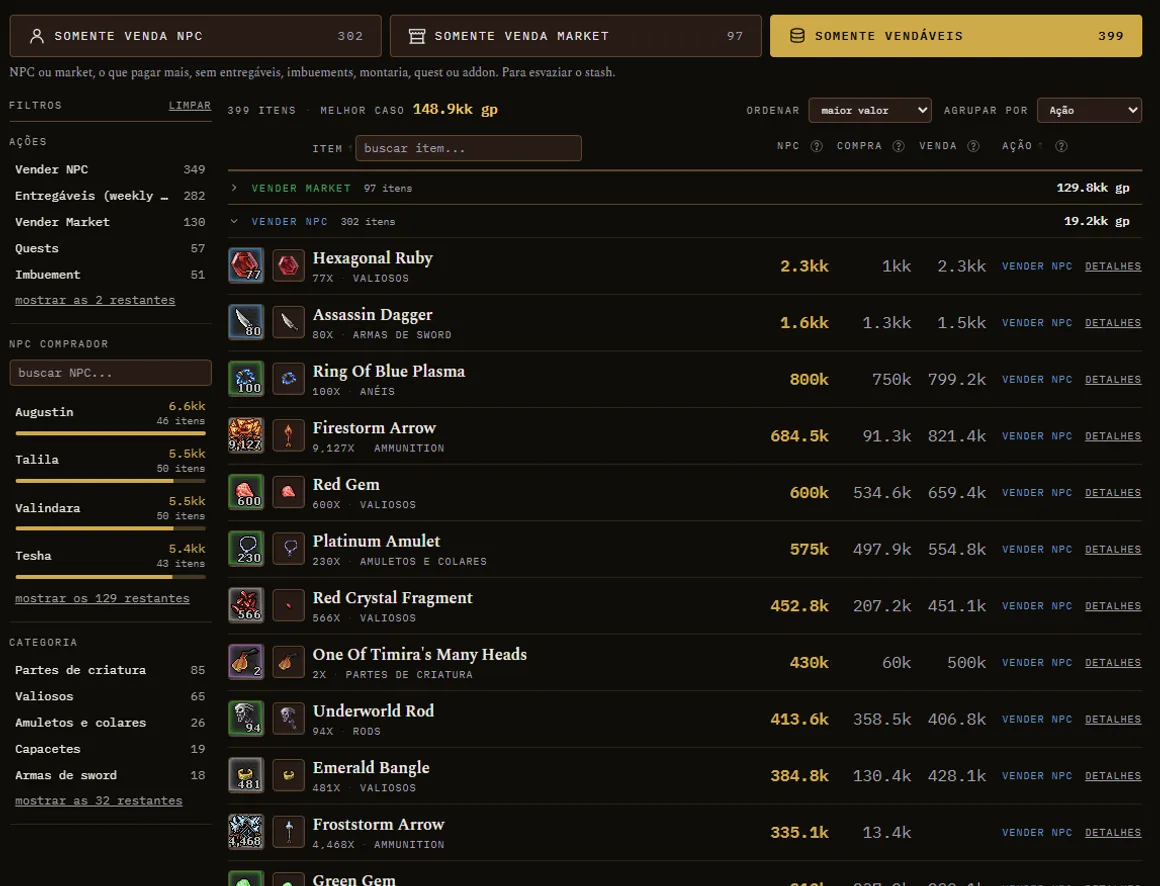
Rucu Cucu Og's stash, 812 items, on the results screen in four modes. Swipe or use the buttons.
1 of 4